Search This Blog

Showing posts with label firefox. Show all posts

Date.parse() behaves different in Firefox compared with Chrome for 'dd-MMM-yyyy'

Date.parse('12-Jan-2022'); works fine in Chrome/Edge, however, Firefox returns wrong date.


To parse the string in Firefox, I wrote my own parser in Typescript:
export function parseDate(ds: string): Date  {
    const regexDateOnly = /^\d{1,2}-[ADFJMNOS]{1}[abceglnoprtuvy]{2}-\d{4}$/g;
    const regexDateTime = /^\d{1,2}-[ADFJMNOS]{1}[abceglnoprtuvy]{2}-\d{4} \d{2}:\d{2}:\d{2}$/g;
    const regexDateTimeMilliSecs = /^\d{1,2}-[ADFJMNOS]{1}[abceglnoprtuvy]{2}-\d{4} \d{2}:\d{2}:\d{2}\.\d{3}$/g;
    let datePart = '';
    let timePart = '';
    let millisPart = '';
    if (regexDateTimeMilliSecs.test(ds)) {
        const parts1 = ds.split(' ');
        const parts2 = parts1[1].split('.');
        datePart = parts1[0];
        timePart = parts2[0];
        millisPart = parts2[1];
    } else if (regexDateTime.test(ds)) {
        const parts = ds.split(' ');
        datePart = parts[0];
        timePart = parts[1];
    } else if (regexDateOnly.test(ds)) {
        datePart = ds;
    } else {
        throw new Error(`Failed to parse date: ${ds}`)
    }
    let year = 1970, month = 0, day = 1, hour = 0, minute = 0, second = 0, millisecs = 0;
    if (datePart) {
        const parts = datePart.split('-');
        day = parseInt(parts[0]);
        switch (parts[1].toLowerCase()) {
            case 'jan':
                month = 0;
                break;
            case 'feb':
                month = 1;
                break;
            case 'mar':
                month = 2;
                break;
            case 'apr':
                month = 3;
                break;
            case 'may':
                month = 4;
                break;
            case 'jun':
                month = 5;
                break;
            case 'jul':
                month = 6;
                break;
            case 'aug':
                month = 7;
                break;
            case 'sep':
                month = 8;
                break;
            case 'oct':
                month = 9;
                break;
            case 'nov':
                month = 10;
                break;
            case 'dec':
                month = 11;
                break;
            default:
                break;
        }
        year = parseInt(parts[2]);
    }
    if (timePart) {
        const parts = timePart.split(':');
        hour = parseInt(parts[0]);
        minute = parseInt(parts[1]);
        second = parseInt(parts[2]);
    }
    if (millisPart) {
        millisecs = parseInt(millisPart);
    }
    return new Date(year, month, day, hour, minute, second, millisecs);
}

see also

Firefox: improve page loading speed

property value
network.http.max-persistent-connections-per-server 10
network.http.max-connections 256
browser.tab.animate false
browser.panorama.animate_zoom false
network.dns.disablePrefetch true
network.prefetch-next false
network.http.speculative-parallel-limit 0


see also

Firefox: Disable mixed content blocking

Firefox blocks the mixed content by default. You can click the little shield icon at the left end of the address bar, then select "Disable protection...", to unblock the web site. However, Firefox does not remember it. Next time you open the web site, you need to go through the same process to unblock it. It is pretty annoying.

You can disable mixed content blocking by
  • Option 1: editing about:config
    • enter about:config in address field.
    • search for security.mixed
    • select security.mixed_content.block_active_content and set it false
  • Option 2: install Toggle Mixed Active Content addon
    • After install the addon, you will see a button with green capital A as icon. Color green means the blocking is enabled. Toggle the button to disable the blocking (the color of the icon will become red: means blocking is disabled.)

Note:

The above options disabled mixed content blocking on all the web sites. It downgrades the security a little bit. The ideal solution will be a whitelist of sites with mixed content in FireFox. We can vote for whitelisting mix-content sites function in Firefox.

Install latest Firefox/Iceweasel on Debian wheezy

sudo echo "deb http://mozilla.debian.net/ wheezy-backports iceweasel-release" >> /etc/apt/sources.list
sudo apt-get install debian-keyring pkg-mozilla-archive-keyring
sudo gpg --check-sigs --fingerprint --keyring /etc/apt/trusted.gpg.d/pkg-mozilla-archive-keyring.gpg --keyring /usr/share/keyrings/debian-keyring.gpg pkg-mozilla-maintainers
sudo apt-get update
sudo apt-get install -t wheezy-backports iceweasel

See also

Install latest Firefox on CentOS Linux

  1. Download the latest Firefox from http://download.cdn.mozilla.net/pub/mozilla.org/firefox/releases/. The current (British English, 64 bit) one is firefox-23.0.1.tar.bz2:
    cd ~/Downloads; wget http://download.cdn.mozilla.net/pub/mozilla.org/firefox/releases/23.0.1/linux-x86_64/en-GB/firefox-23.0.1.tar.bz2
  2. Extract it into /opt:
    cd /opt; sudo tar jxvf ~/Downloads/firefox-*.tar.bz2
  3. To start in Terminal:
    /opt/firefox/firefox
    You can also create launcher for it...
  4. Link the plugin directory:
    cd ~/.mozilla; ln -s /usr/lib64/mozilla/plugins

Firefox: backup saved passwords

  • Method 1:
    1. Go to your Firefox profile directory.
    2. Copy the following 2 files: key3.db and signons.sqlite to the backup destination.
      cp signons.sqlite key3.db /path/to/backup-dir
  • Method 2:
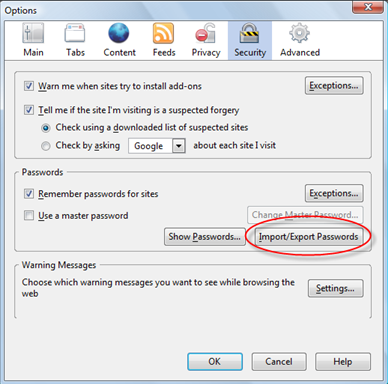
    1. Install Firefox Addon: Password Exporter
    2. Mac: Firefox -> Preferences -> Security -> Import/Export Passwords
      Windows: Tools -> Options -> Security -> Import/Export Passwords

How to build Google Web Toolkit DevMode plugin for Firefox 17.0 on Mac OS X

  1. Install XCode if you do not have it. (XCode 3.2.6 is recommended for building this plugin, because the source code is configured to used Mac OS 10.5 sdk, which is included in XCode 3.2.6, but it is dropped by later version XCodes. However, the later version e.g. xcode 4.3, can also be used with a few modifications on the configuration.)
  2. Check out the source code:
        svn checkout http://google-web-toolkit.googlecode.com/svn/trunk/plugins gwt/plugins
        svn checkout http://google-web-toolkit.googlecode.com/svn/plugin-sdks/gecko-sdks/gecko-17.0.0 plugin-sdks/gecko-sdks/gecko-17.0.0
      
  3. If you have xcode 3.2.6 installed, you can try to build it:
    cd gwt/plugins/xpcom && make BROWSER=ff170
  4. If you have later xcode version, e.g. xcode 4.3, installed, the command above will fail with errors finding cstdio.h. To make it work, you need to
    1. modify plugins/config.mk,
      vi ../config.mk
      change
      BASECFLAGS= $(DEBUGCFLAGS) -O2 -fPIC $(INC) -D__mac -mmacosx-version-min=10.5 -isysroot /Developer/SDKs/MacOSX10.5.sdk -std=c++11
      to
      BASECFLAGS= $(DEBUGCFLAGS) -O2 -fPIC $(INC) -D__mac -mmacosx-version-min=10.7 -isysroot /Applications/Xcode.app/Contents/Developer/Platforms/MacOSX.platform/Developer/SDKs/MacOSX10.7.sdk -std=c++11
    2. modify gwt/plugins/xpcom/Makefile,
      vi Makefile
      change
      DLLFLAGS += -bundle $(ALLARCHCFLAGS) -mmacosx-version-min=10.5  -isysroot /Developer/SDKs/MacOSX10.5.sdk
      to
      DLLFLAGS += -bundle $(ALLARCHCFLAGS) -mmacosx-version-min=10.7  -isysroot /Applications/Xcode.app/Contents/Developer/Platforms/MacOSX.platform/Developer/SDKs/MacOSX10.7.sdk
  5. run
    make BROWSER=ff170
    (in gwt/plugins/xpcom directory.) to build.
  6. the result plugin file will be gwt/plugins/xpcom/prebuilt/wt-dev-plugin.xpi

Show/Hide http:// prefix in Firefox

  1. Type “about:config “ in the address bar and press enter. Then proceed by clicking "I'll be careful, I promise!" button.
  2. Search for browser.urlbar.trimURLs preference and double-click it to set its value to false.

Firefox 13: disable the most visited sites grid in the new tab page

As of Firefox 13, when open a new tab, the most visited sites appear as a grid. To disable this:

  • Method 1: Click the grid icon at the top right corner


  • Method 2:
    • Type about:config in the address field and hit enter;
    • Search browser.newtabpage.enabled and set it to false


Firefox: disable flash

Flash videos on the web pages can sometimes crash the Firefox. I am using Firefox on Mac OS. So I want to disable the flash videos in Firefox. The following to addons can be installed for that purpose:
  • Flashblock:
    A Firefox addon, which can disable flash on the web page (you can still play the video by manually start it). It allows white-lists.
  • NoScript:
    A Firefox addon, which lets you disable scripts, Flash and other plugins and supports a white-listing. I am currently using Flashblock, because I found NoScript is a bit complicated to manage and I do not want to block anything else other than flash.

Firefox on Mac OS: mouse right-click on bookmark menu does not work

On Firefox for Windows/Linux, you can right-click to open the context menu to manage the bookmarks in bookmark menu. However, this is not available on Firefox for Mac OS.

The only work around I found is that you can open the bookmark, and click the "blue star" at the right end of the address field to remove/manage the bookmark. It is not as convenient as the pop up menu though.